

Is Chrome Eating Up Your Disk Space?
Hey there! If you are like me and clean your disk space regularly, you might have noticed something strange recently. Google Chrome is taking up way more space than it used to.
You might find a folder with a weird name hiding on your computer:
- Windows Users: Go to
%LOCALAPPDATA%\Google\Chrome\User Data\OptGuideOnDeviceModel - macOS Users: Check
~/Library/Application Support/Google/Chrome/OptGuideOnDeviceModel
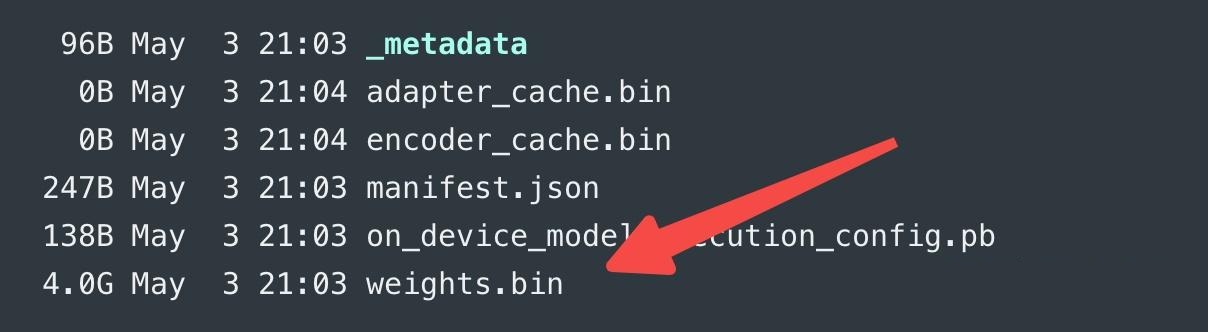
Inside, you will likely find a file named weights.bin.
This file is huge—about 3 to 4 GB. That’s roughly the size of a Linux operating system! What is going on? Did Chrome install an OS on my drive?
The most annoying part? If you delete it, it comes back later.
I did some digging, and it turns out I wasn’t the only one affected. Here is the truth behind this mystery file and how to get rid of it for good.
What is This 4GB File?
Since Chrome version 147, Google has been silently downloading the Gemini Nano model weights to your computer.
Gemini Nano is Google’s lightweight, on-device large language model (LLM). While AI features are cool, the problem is clear: Chrome downloaded this without asking for your permission.
Many users argue this might even violate privacy laws like the EU’s ePrivacy Directive. Google has not officially responded to this yet.
Before you delete that file, let’s clear up two important things.

1. It Has Nothing to Do with the “AI Mode” Button
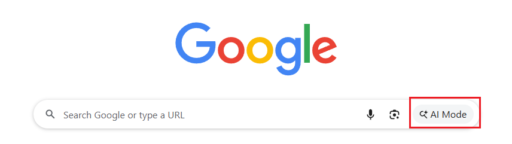
Chrome 147 added an “AI Mode” button next to the address bar. You might think this button uses that 4GB file. It doesn’t.
The “AI Mode” button connects to Google’s cloud servers. It sends your questions to the internet and brings back answers. It does not rely on the file on your hard drive.
2. So What is the File For?
According to Chrome’s documentation, this local model powers specific features that run entirely on your computer:
- “Help me write”: Assists with writing emails or comments.
- Page Summaries: Summarizing web pages.
- Smart Paste: Intelligent pasting features.
- Tab Group Suggestions: Organizing your open tabs.
- On-device Scam Detection: Warning you about potential scams.
Additionally, it supports built-in AI APIs for developers (Prompt API, Summarizer, Writer).
The Reality: 99% of users rarely use these features. So, you have a 4GB file sitting there, taking up space, probably doing nothing.
Is It a Privacy Risk?
For privacy, the news is actually okay. Chrome’s documentation states that Gemini Nano runs entirely locally. Your queries are not sent to Google or any third party when you use these specific local features.
The real issue is simply that Chrome didn’t ask permission to download 4GB of data. And turning it off is not straightforward.
How to Remove the 4GB AI Model (Step-by-Step Guide)
If you don’t plan to use “Help me write” or the other features mentioned above, you can safely remove this file.
Here is the easiest method, which works on Windows, macOS, and Linux. It takes about one minute.
Method 1: The Universal Fix (Chrome Flags)
- Open Chrome and type
chrome://flagsin the address bar. Press Enter. - In the search box, type
optimization-guide-on-device-model. Change the setting to Disabled. - On the same page, search for
prompt-api-for-gemini-nano. Change this to Disabled as well.
(Note: You must disable BOTH. If you only disable the first one, the Prompt API might still trigger the download in the background.) - Click the Relaunch button at the bottom to restart Chrome.
- Go back to the folder mentioned earlier (
OptGuideOnDeviceModel) and delete the entire folder.
Important Warning: This method isn’t permanent. Major Chrome updates in the future might reset these flags. If Chrome updates, check back to see if the folder has returned.
Method 2: The Permanent Fix for Windows Users
If you want a “set it and forget it” solution that survives Chrome updates, use the Windows Registry. This uses Chrome’s official enterprise policy settings.
- Press Win + R, type
regedit, and press Enter to open the Registry Editor. - Navigate to this path:
HKEY_LOCAL_MACHINE\SOFTWARE\Policies - Right-click on Policies -> New -> Key. Name it Google.
- Right-click on Google -> New -> Key. Name it Chrome.
- Select the Chrome key. Right-click on the blank space on the right -> New -> DWORD (32-bit) Value.
- Name the new value:
GenAILocalFoundationalModelSettings. - Double-click it and set the Value data to 1.
- Restart your computer.
After the restart, Chrome will stop downloading Gemini Nano and automatically clean up any existing weights.bin files.
(Note: Mac and Linux currently do not have a permanent “once-and-for-all” method like the Registry. You will need to check the Chrome flags periodically.)
What Do You Lose by Disabling It?
After turning it off, you will lose access to these specific local features:
- Help me write
- Page summaries
- Smart paste
- Tab group suggestions
- On-device scam detection (decide for yourself if you need this)
You will NOT lose:
- Normal web browsing.
- The “AI Mode” button in the address bar (it still works because it uses the cloud).
- Regular Google Search results.